


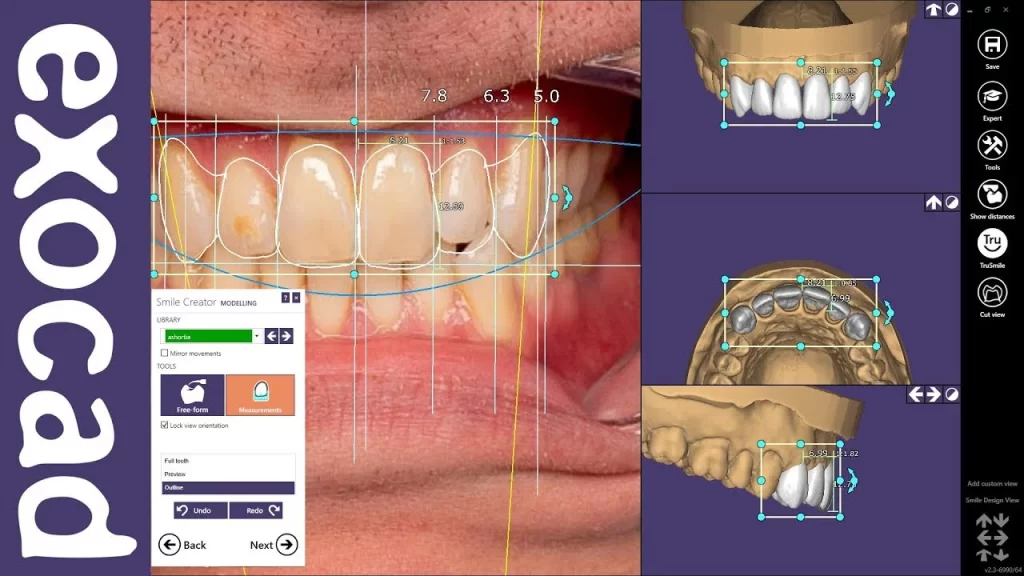
TL;DR: every current intraoral scanner can export an open STL, PLY or DCM file, and a lab can take that file straight into exocad.
The real barrier is not “is my scanner compatible” but three small things: exporting the right format, sending complete data (both arches, bite, scan body for implants) and getting fast feedback when a scan has a defect. This guide lists how to export from each common scanner, the scan errors we see most, and how our lab responds.
The three file formats to know
- STL: a plain triangle mesh, no colour. The most common format; every CAD package reads it. Sufficient for crowns, bridges and inlays/onlays.
- PLY: like STL but with surface colour. Lets the technician see gingiva, margins and neighbouring teeth; export PLY when the scanner supports it.
- DCM: 3Shape’s format, mesh with colour and case information. exocad reads DCM from TRIOS directly.
Closed native formats (for example native iTero files) must be exported to STL/PLY through the manufacturer’s portal before sending.
How to send files from common scanners
| Scanner | Export formats | How to send to the lab | Notes |
|---|---|---|---|
| 3Shape TRIOS (3, 4, 5) | DCM (default), STL, PLY | 3Shape Communicate: add the lab as a partner and send the case; or export DCM/PLY and upload to the case portal | Include the bite scan and photos; DCM keeps colour best |
| iTero (Element, Element 5D, Lumina) | STL, PLY (via MyiTero) | Add the lab to the lab list on the scanner or export STL from MyiTero and upload | Export “open STL” with both arches and bite; native iTero files cannot be opened by the lab |
| Medit (i500, i600, i700, i900) | STL, PLY, OBJ | Medit Link: invite the lab as a partner and send directly; or export PLY | PLY keeps colour; tick “both arches + occlusion” on export |
| Dentsply Sirona Primescan / Omnicam | STL, PLY (Connect Case Center) | Connect Case Center: add the lab and send; or export STL from Connect software | Export “unlocked” so the lab can open the file |
| Carestream CS 3600 / 3700 / 3800 | STL, PLY | CS Connect or export and upload | Check the bite covers both sides |
| Shining 3D Aoralscan | STL, PLY, OBJ | Shining cloud or export | Export PLY to keep gingival colour |
| Planmeca Emerald | STL, PLY | Romexis Cloud or export |
For files over 100 MB (full-arch colour scans) use the case portal or a download link; email is usually capped at 25 MB.
Minimum data for a digital case
- Scan of the prepared arch and the opposing arch.
- Bilateral bite scan in maximum intercuspation.
- Prescription: tooth number, restoration type, material, shade, due date. See the ordering process.
- Photos: preparation with a shade tab; smile photo for esthetic-zone cases.
- For implants: implant system, connection size, scan body type and a scan with the scan body seated.
- For esthetic cases: a pre-operative or mock-up scan if you want the morphology preserved.
Seven common scan errors and how to avoid them
- Missing margin: retract and dry before scanning; rescan the area, not the whole arch.
- Holes on occlusal or proximal surfaces: auto-fill invents morphology; angle the tip to close them.
- Bite that does not align: patient not in habitual occlusion or one-sided bite scan; scan both sides and check on screen before sending.
- Too few neighbouring teeth: capture at least 2–3 teeth each side so the lab can build morphology and contacts.
- Saliva, blood, debris: creates false surfaces; dry and rescan.
- Scan body not fully seated or wrong type: the implant crown will be off-axis; photograph the seated scan body.
- Locked export: the lab cannot open it; choose open/unlocked export.
How our lab responds to a file
At Khai Nguyen every file is checked in the next working shift: margins, holes, occlusion and preparation depth against the chosen material. If there is a problem you receive an annotated screenshot with a suggestion (rescan one area, reduce further, or change material) before production starts.
For esthetic cases you can request an exocad design preview to approve contour and contacts. In-lab time of 2–4.5 working days (depending on material and number of units) counts from file approval. Read more in turnaround time and shipping.
Frequently asked questions
Can I send digital cases without a scanner?
Yes. Ship the model or silicone impression; the lab pours and scans it on a desktop scanner and continues digitally. It only adds shipping time.
Is an older scanner that only exports STL enough?
Enough for crowns, bridges and inlays/onlays. For esthetic cases add photos to compensate for missing colour information.
Do you accept designs made in the clinic’s own software?
Yes. Send the design STL together with the original scan so the lab can check occlusion and thickness before milling or pressing.
See also the workshop on digital impression techniques and our guide to outsourcing to a Vietnam dental laboratory. To try a case: WhatsApp +84 902 945 585.
Written for dentists and technicians. Khai Nguyen Dental Lab manufactures to clinical prescription only and does not sell directly to patients.


Pingback: Ceramill Map600 Scanner: Model and Impression Scanning